Website Lead Capture
Website SMS Widgets: Turn Visitor Questions Into Bookings
Learn how a website SMS widget helps visitors ask questions, request appointments and continue by text. Explore branding, placement and setup with Text.st.
Give visitors a clear way to contact you
A website SMS widget gives visitors a compact way to start a text conversation with your business. Instead of searching for the right contact page, someone can ask a question, request support or begin an appointment journey from the page they are already viewing.
The experience should make the next step obvious. A restaurant visitor may want to ask about a reservation. A homeowner may need a repair appointment. Choose the action that fits the page and the customer’s likely reason for visiting.
Design the widget around your brand
In Text.st Widget Studio, you can shape the branding and preview your design before publishing. Use colors and wording that feel consistent with your website. Keep the opening message concise and explain what the customer can do.
A focused widget feels easier to use when each field has a purpose. Ask for the details needed for the selected action and make the phone number and messaging consent clear. Check the preview on smaller screens so labels, buttons and input fields remain readable and comfortable to use.
Add it to the website you already have
Text.st widgets work with HTML websites and platforms that support custom embed code, including WordPress, Wix, Shopify, Squarespace, Webflow and Framer. The available placement and installation options depend on your website platform and plan.
Publish your widget and follow the relevant embed instructions. Check its placement on your home page and key service pages. Give visitors a useful contact option without covering navigation, important information or other actions. Review the experience on mobile, tablet and desktop before sharing it with customers.
Keep the page context in mind when choosing your invitation on each page. A service page can emphasize scheduling, while a support page can invite questions. Consistent wording helps customers understand the widget wherever they discover your business.
Connect the question to the right action
A widget should help someone move from interest to a practical next step. Text.st can provide routes for questions, bookings, text support and callback requests. Choose the experience that reflects how your business actually handles customer inquiries.
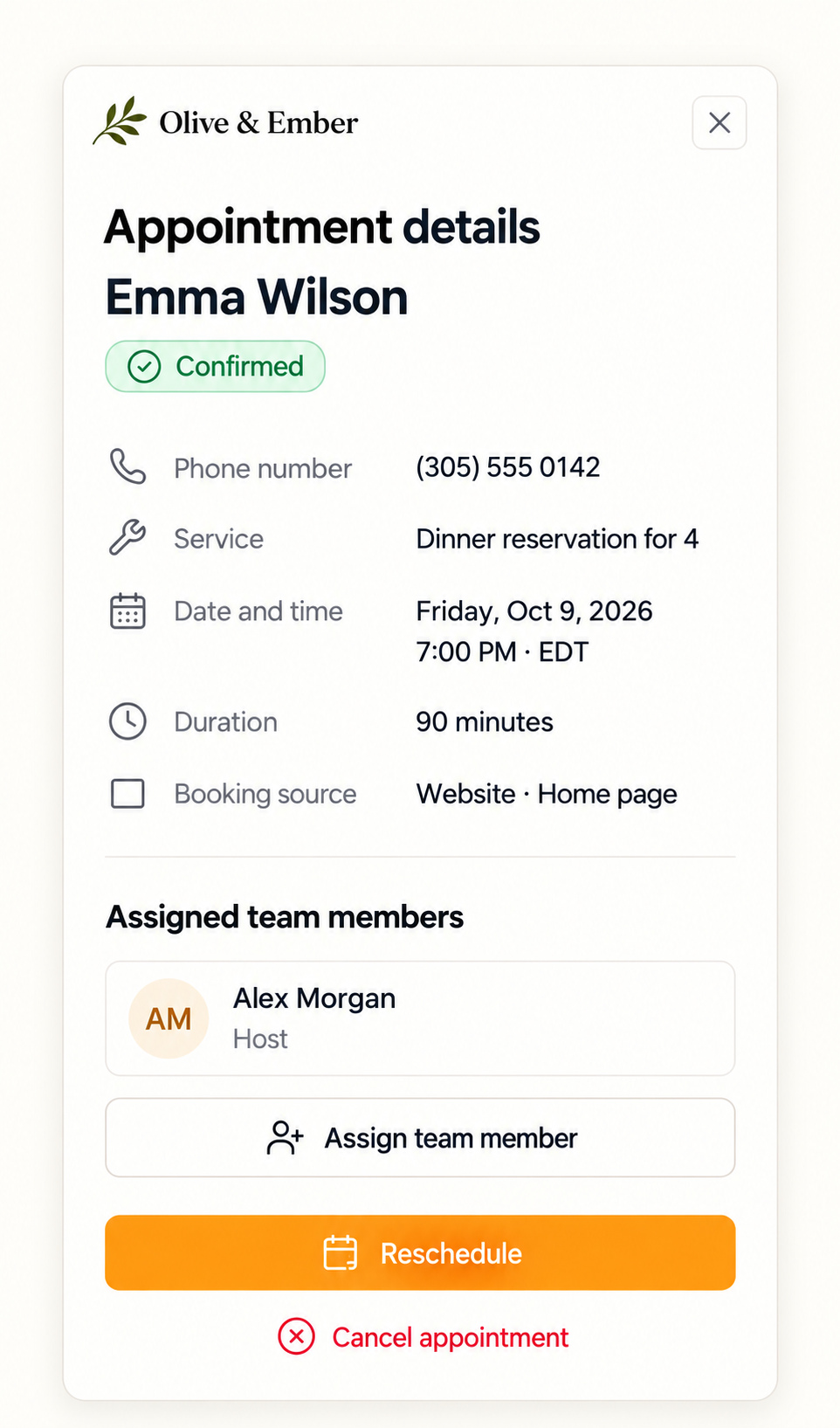
Imagine a restaurant customer asking about a table for four. Relevant Business Knowledge helps answer routine questions, while the booking journey provides a route to an appointment. Your team can then review the booking details and assigned teammate. This example illustrates a workflow rather than a promise of availability.
Keep the conversation moving
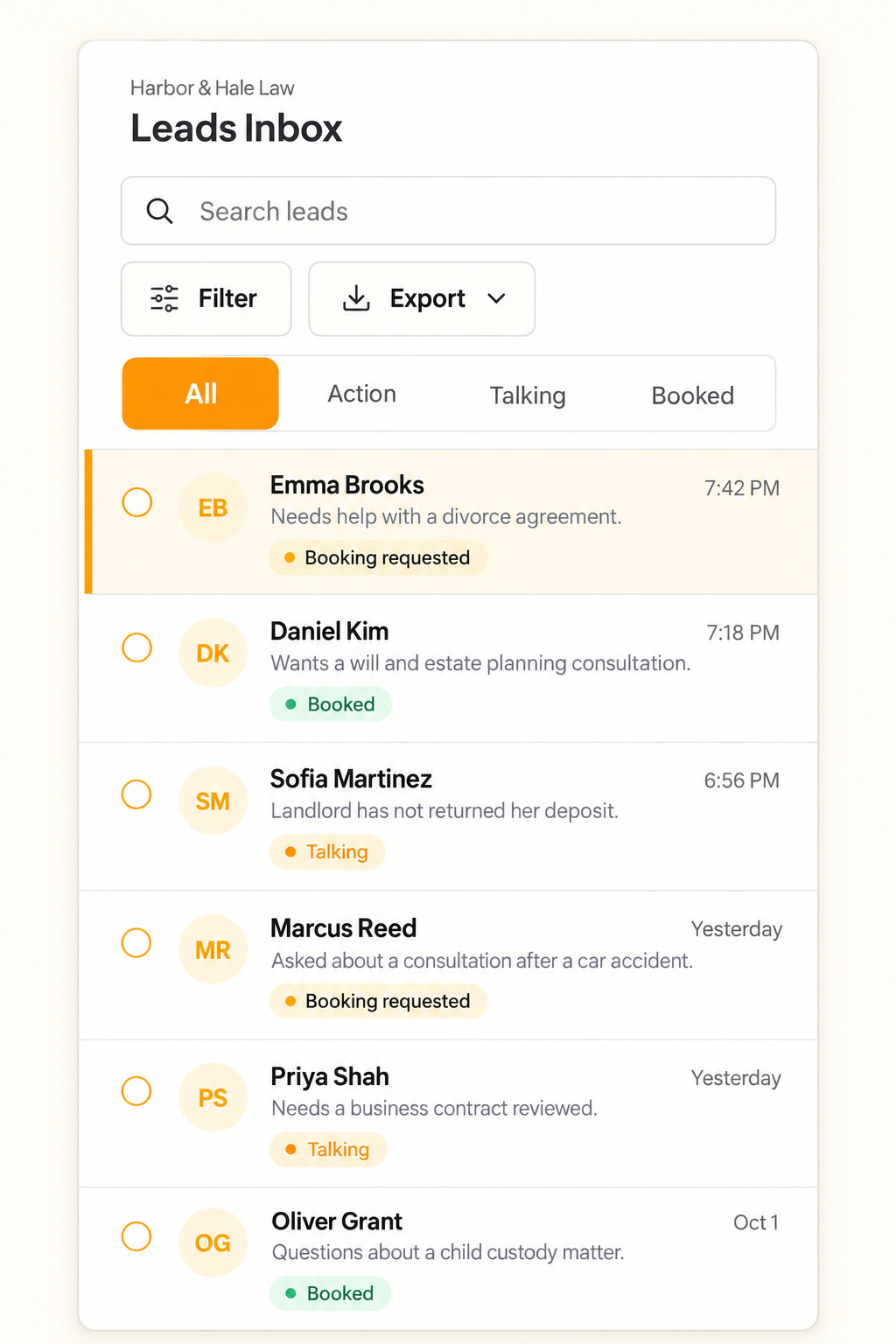
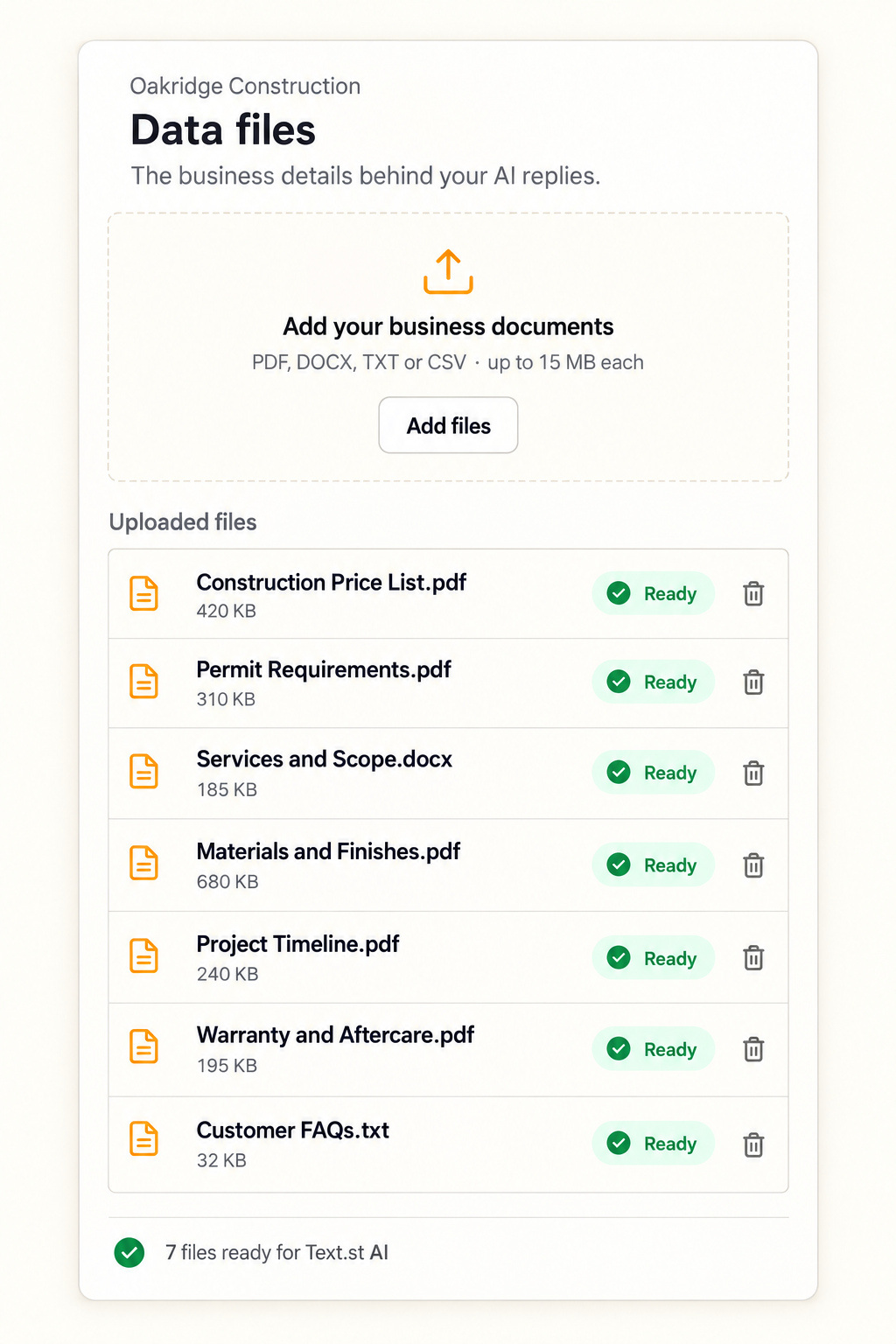
Once messaging is approved, customer conversations can continue by SMS after visitors leave the website. Text.st AI uses your Business Knowledge for routine replies, and the Leads Inbox keeps the conversation available to your team.
Use Test Drive to check common questions and the journey into bookings or support. Review what customers ask and refine your widget wording when an action causes confusion. Start with one important page and one clear goal. Explore Website Widgets to see the Studio, then compare plans when you are ready to bring Text.st to your own website.