Bookings and Lead Management
How to Reduce No Shows With an Easy Text Reschedule Plan
Learn how to reduce no shows with useful reminders, a simple way to reschedule by text, and a clear team routine for unanswered messages.

Catch the conflict before leaving
Before you pack the last cleaning cloth, give customers a clear way to flag a scheduling conflict. Picture the familiar moment: supplies are ready in the hallway, but you still do not know whether someone will be home. If you are working out how to reduce no shows, look beyond sending another reminder.
A customer may remember the visit but hesitate to call about a change. Your plan should make replying easy, put someone in charge of those replies, and distinguish an unanswered reminder from a canceled appointment.
Choose a useful reply window
Send a reminder while there is still time for your team to respond to a scheduling problem. Work backward from when you prepare supplies, assign staff, or leave for the appointment. Choose timing your team can actually support rather than copying another business's routine.
Ask customers whether texting is a suitable way to reach them about the visit. Keep the reminder focused on the appointment and invite a reply if plans have changed. Avoid a string of extra messages simply because the customer has not answered yet.
Make rescheduling feel manageable
Give customers a simple instruction: reply to this text if the appointment no longer works. Let them explain the conflict in ordinary language instead of requiring a special word or sending them searching for a phone number.
When a customer asks to move the visit, acknowledge the request and check your actual availability before offering alternatives. Ask which available option works, then confirm the agreed change. A request to reschedule is not a completed reschedule. Keep the original appointment's status clear until your team resolves the request.
Decide what silence means
Assign a team member to review appointment replies before the day's departure or preparation checkpoint. Make sure a colleague knows who takes over when that person is unavailable. Keep unresolved requests visible so they do not disappear between shifts.
Do not treat silence as permission to cancel unless that requirement was clearly agreed beforehand. Follow your stated process for checking an unanswered appointment. After a missed visit, review whether the obstacle was remembering, reaching you, or completing a change. Improve that specific step instead of automatically adding more reminders.
Give replies a place to land
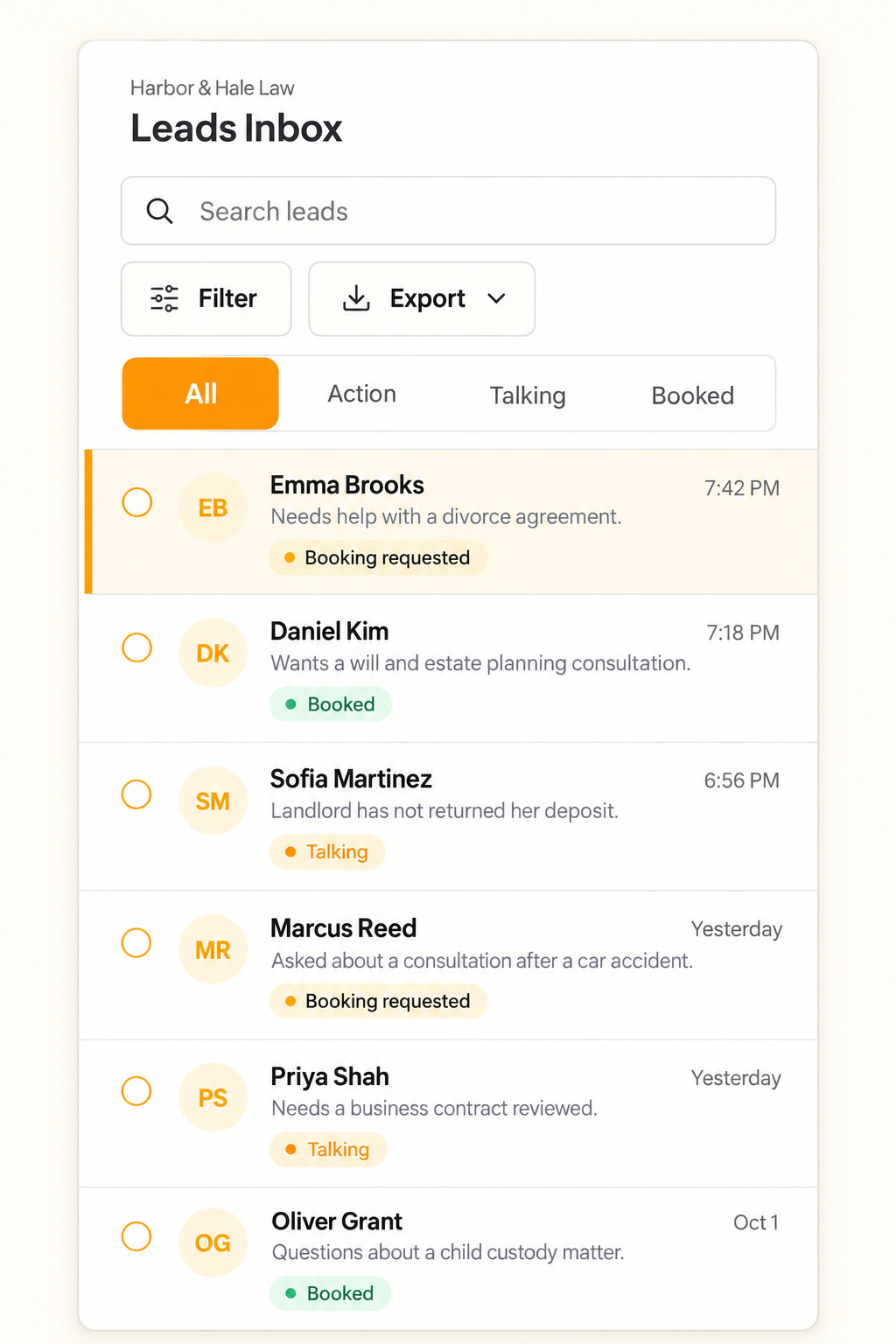
Text.st gives your business an activated phone number customers can text directly. Booking reminders can be sent by text, and the shared Inbox shows every conversation to your team, whose members can reply. Those capabilities support the reminder and reply portions of this routine; your team should still check availability and confirm schedule changes.
Before using business texting, account for messaging certification, which is required in some countries. Text.st assists with certification. Messaging usage and carrier charges are separate from the subscription. [Get your business texting number with Text.st.](https://app.text.st/auth)
Common questions
Should I cancel an appointment if the customer does not answer the reminder?Not solely because the reminder went unanswered. Follow the confirmation requirements you clearly communicated when the customer booked. If no response was required, keep the appointment in place and use your agreed contact process to check whether the customer still intends to attend.
What should I do when a customer texts that they need another day?Acknowledge the request, check availability, and offer options your team can honor. Ask the customer to choose, then clearly confirm the new arrangement. Until that exchange is complete, mark the request as unresolved in your working process rather than assuming the appointment has moved.
How do I choose when to send a reminder?Start with the point when your team commits preparation time or travel to the visit. Leave room before that point for customers to reply and for staff to resolve changes. Choose a window when someone can review replies, and explain when customers should expect a response.