Industry Playbooks
Find Your Google Review Link and Make It Easy to Share
Find your google review link, test it on your phone, and share a direct route to your review form without making customers search.

Skip the search directions
Save customers a search when they ask where to leave a review. Picture the end of a plumbing job: you are packing the van, and the homeowner asks, “Where should I review you?” A saved google review link gives you something useful to send instead of explaining how to find your listing.
The goal is simple: let a customer tap straight into the review process. That does not mean a review is submitted with a tap. They still write and post it themselves.
Copy the link from Google
Sign in to the Google account that manages your Business Profile. Search Google for your business name, then open the profile management controls. Look for an option such as “Ask for reviews” or “Get more reviews.” Labels and placement can vary between interfaces.
Open that option and copy the review link Google provides. Avoid copying the address from an ordinary search results page, which may send customers somewhere less useful. If you manage separate locations, check the business name and address before copying. Save each location’s link with a clear label.
Test the customer’s path
Paste the link into a note and open it on your phone. Confirm that it points to the correct business and takes you into the review process rather than a general search. Check the location again if your business has similar names nearby.
Try a browser where you are not signed in, too. Customers may need to sign in to a Google account before posting. Knowing that helps you explain a sign in prompt without treating it as a broken link. Stop before submitting a test review.
Keep the message useful
Keep the checked link in a shared reference your team can find. Use the same saved version in a text, receipt, or email rather than asking each person to hunt for it. Recheck it after changes to your business listing.
A simple text could say: “Thanks for choosing our plumbing team today. If you would like to share your experience, here is our Google review link: [review link].” Ask for an honest account, not a particular rating. Use text only with appropriate permission, identify your business, and respect requests to stop.
Put the checked link to work
Once the link works, decide where your team will keep it and who will send it. That small preparation makes the next customer’s question easier to answer.
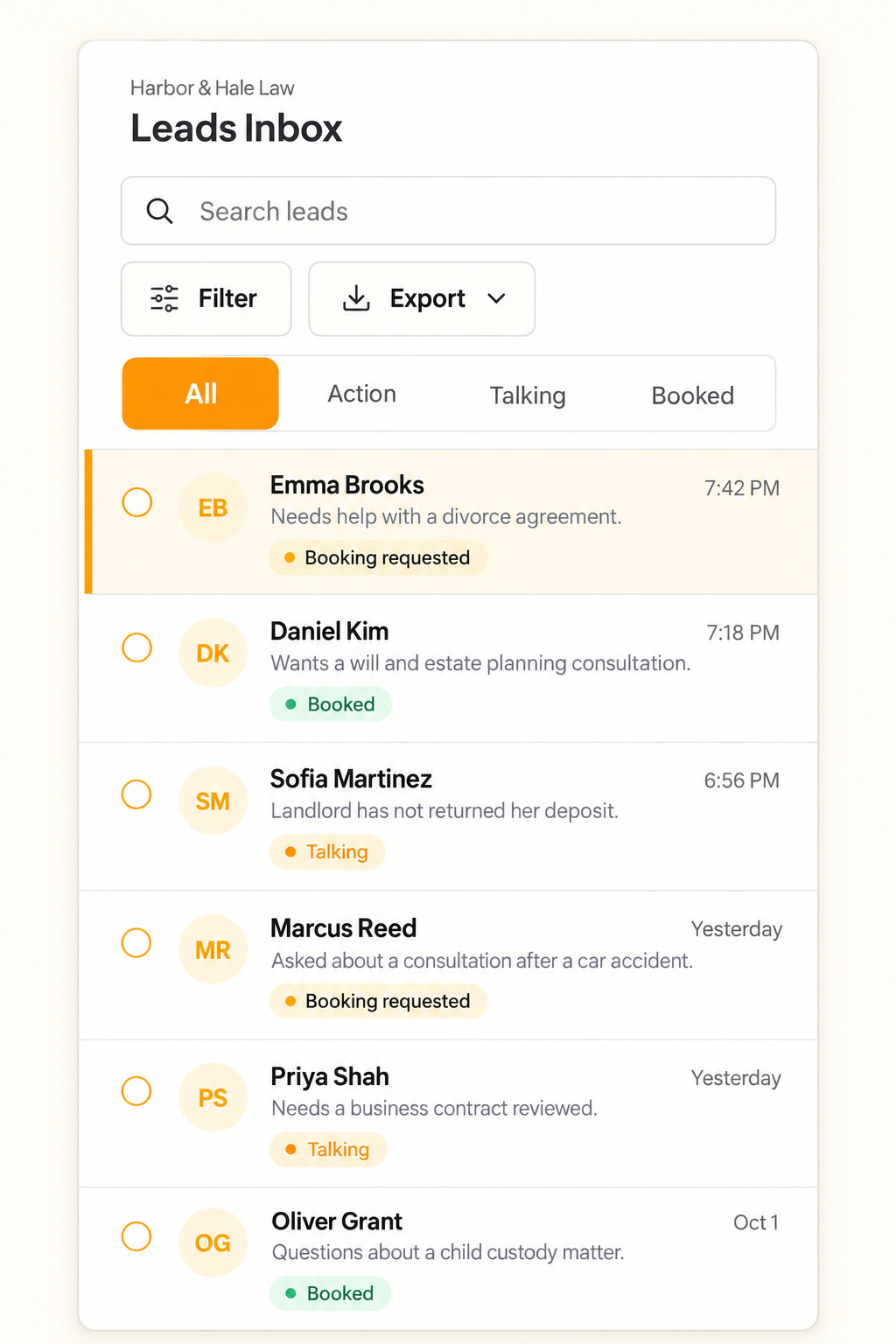
Text.st gives your business an activated phone number customers can text, and review requests can be sent by text. The shared Inbox shows every conversation to your team, and team members can reply.
Messaging certification is required before business texting in some countries, and Text.st assists with that process. Get your business texting number with Text.st. Start at https://app.text.st/auth.
Common questions
Why does my review link ask customers to sign in?Google requires customers to sign in to a Google account to post a review. Your direct link can open the review process, but it does not bypass that requirement. Test the link while signed out so you recognize the screen customers may see.
Should I send my Google Maps listing link instead?For a review request, use the dedicated review link from your Business Profile rather than a general Maps listing link. A listing link can leave customers looking for the review controls themselves. Open the copied link on your phone to confirm the destination before sharing it.
How should I handle review links for separate locations?Copy the review link from each location’s own Business Profile and label it with the location name and address. Keep those labels alongside the saved links in your team reference. Before sending a request, match the link to the location that actually served the customer.