Bookings and Lead Management
Automated Appointment Reminders That Ease Front Desk Work
Make automated appointment reminders friendlier with a practical routine for timing, schedule changes, and replies that need your front desk.

Stop rebuilding the reminder list
Keep tomorrow’s reminders from taking over today’s front desk. A customer is waiting to pay, the phone rings, and you are still checking which appointments need a message. Automated appointment reminders can take repetitive sending off the desk, but only when the routine behind them is clear.
The useful goal is not more messages. It is less copying, fewer manual checks, and a clear place for replies that need a person. Start by separating routine reminders from exceptions such as a changed visit or a customer asking to move their appointment.
Map the work before automating
Walk through your current reminder process with whoever handles the desk. Note where they find the schedule, how they check permission to text, and what happens after a customer replies. Look for repeated work rather than rewriting the reminder itself.
Choose the appointment record your team will treat as current. Assign someone to check changes before reminders go out. When evaluating automation, ask how it handles moved appointments and cancellations. Do not assume a schedule change will stop an old reminder unless you have verified that behavior.
Choose timing that feels considerate
Set reminder timing around what customers need to prepare, not simply when the desk has a quiet moment. A visit requiring access to a backyard may need more notice than a familiar appointment with no preparation.
Keep messages within reasonable local daytime hours. Avoid stacking another reminder onto a conversation where the customer has already responded. Use warm, neutral language rather than pressure: a reminder should feel like helpful coordination, not a warning. Review your sending routine whenever customers describe it as repetitive or confusing.
Give exceptions a human owner
Automation does not remove the need to read replies. Decide who checks incoming messages during business hours and who covers when that person steps away. Separate simple acknowledgments from requests that require a decision.
A customer asking for a different day should not be left wondering whether the change is confirmed. Have the team verify availability before confirming anything. At the end of the day, review unresolved replies rather than rereading every appointment. That keeps attention on the conversations where someone actually needs help.
Common questions
How should I choose when an automated reminder goes out?Start with the preparation your customer needs and the time your team needs to handle a reply. Choose reasonable local daytime hours. Then review customer feedback and desk workload. If replies arrive when nobody can address them, reconsider the timing or arrange coverage.
What should happen when someone reschedules after a reminder?Update the appointment record your team uses as its reference, then check whether any pending reminder still points to the old visit. Verify your automation’s behavior rather than assuming it adjusts. Confirm the new appointment only after availability is checked, and assign any unresolved request to a person.
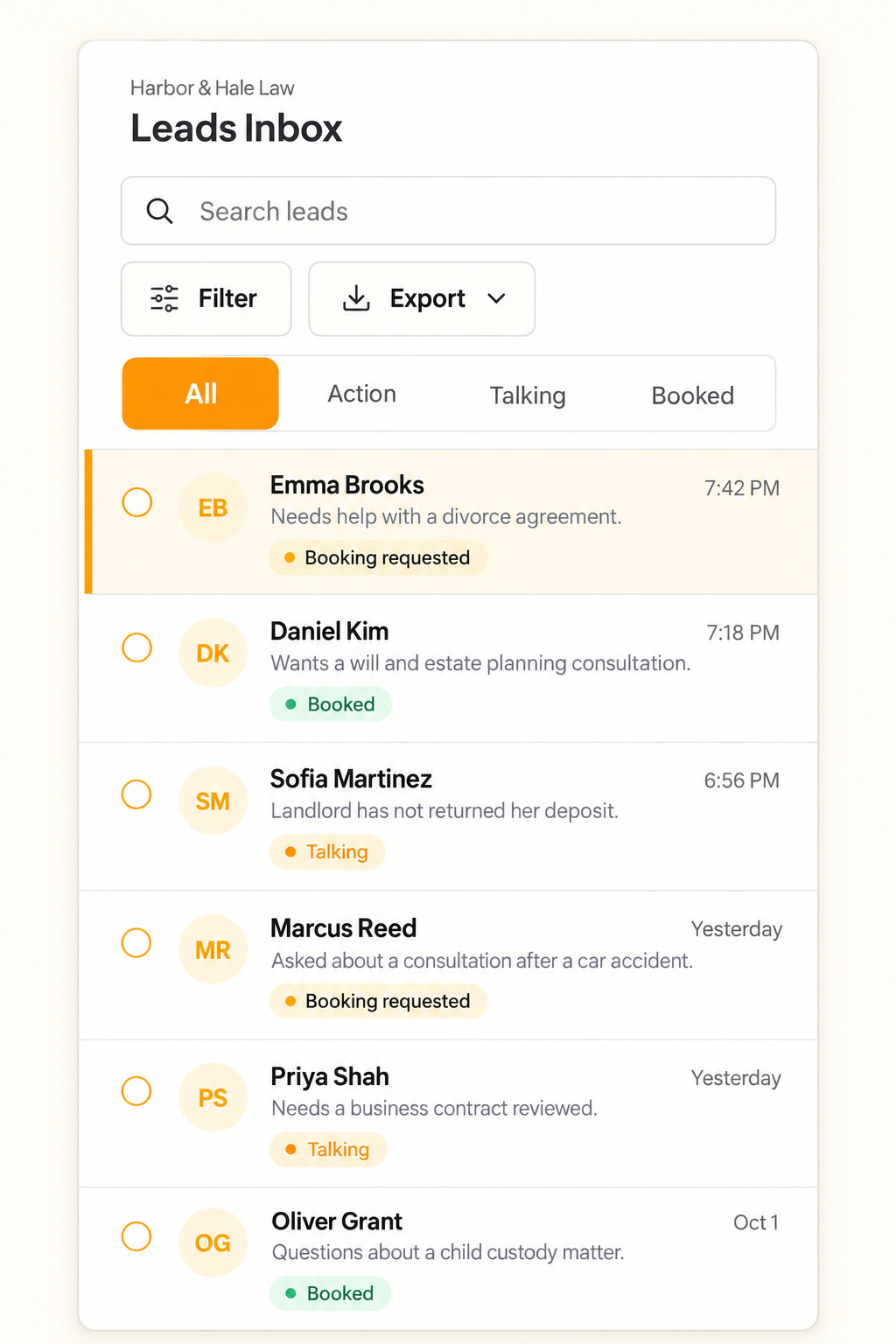
Can Text.st help the team handle replies to booking reminders?Text.st can send booking reminders by text, and its shared Inbox shows every conversation to the team. Team members can reply there. Establish who checks replies and who handles requested changes. These verified capabilities do not establish automatic scheduling or cancellation of reminders.